WizLeads


TL;DR
- Steps: On a computer, open Settings & Privacy > Data privacy, click LinkedIn's data-download link, choose the data you want or the larger archive, and request it. LinkedIn emails you a download link.
- Wait: LinkedIn's own help page says "within 24 hours" in one place and lists the Connections file under "Available within 48 hours" in another. Plan for up to 48 hours, not ten minutes.
- Blanks: The email column is filled only for connections who allow downloads, and LinkedIn gives no figure for how many do. A work-email finder can fill the gaps once you add each company's website.
To export LinkedIn contacts, open Me > Settings & Privacy > Data privacy on a computer, click the data-download link and request your data archive. LinkedIn sends the download to your primary address by email, and it stays available for 72 hours. Connections.csv lists your 1st-degree connections, but the email cell is filled only where a connection allows downloads. LinkedIn's help page gives the wait as 24 hours in one place and 48 hours in another.
When we searched Google in the US for this, several ranking guides promised a file in about ten minutes. LinkedIn's current help pages describe a longer wait, a different menu and a file with gaps.
How to export LinkedIn connections and contacts, step by step
LinkedIn documents this path for a desktop browser:
- Click Me, then Settings & Privacy.
- Click Data privacy.
- Under How LinkedIn uses your data, click the data-download link. LinkedIn's "Export connections from LinkedIn" help page (the export page below) calls it "Get a copy of your data", and its download-your-data page calls it "Download your data". Look for either.
- Choose what to request. The export page says to select Download larger data archive. The download-your-data page says to "Select the data that you're looking for", and notes that you can pick specific categories or a larger download.
- Click Request archive.
- Open the email LinkedIn sends to your primary email address and use its link to download the file.
LinkedIn's two pages use two sets of labels, so look for either on your screen. If your screen lists categories, pick Connections and Contacts. If it offers only the larger archive, request that.
LinkedIn's help page also gives linkedin.com/psettings/data-privacy as a shortcut to the Data privacy settings.
To download LinkedIn connections you need a computer. LinkedIn says the feature is not available on mobile and asks you to download from a personal computer, not a public one.
Older guides tell you to tick a Connections-only box under "Want something in particular?". LinkedIn's help pages no longer use that wording.
How long it takes to download LinkedIn connections
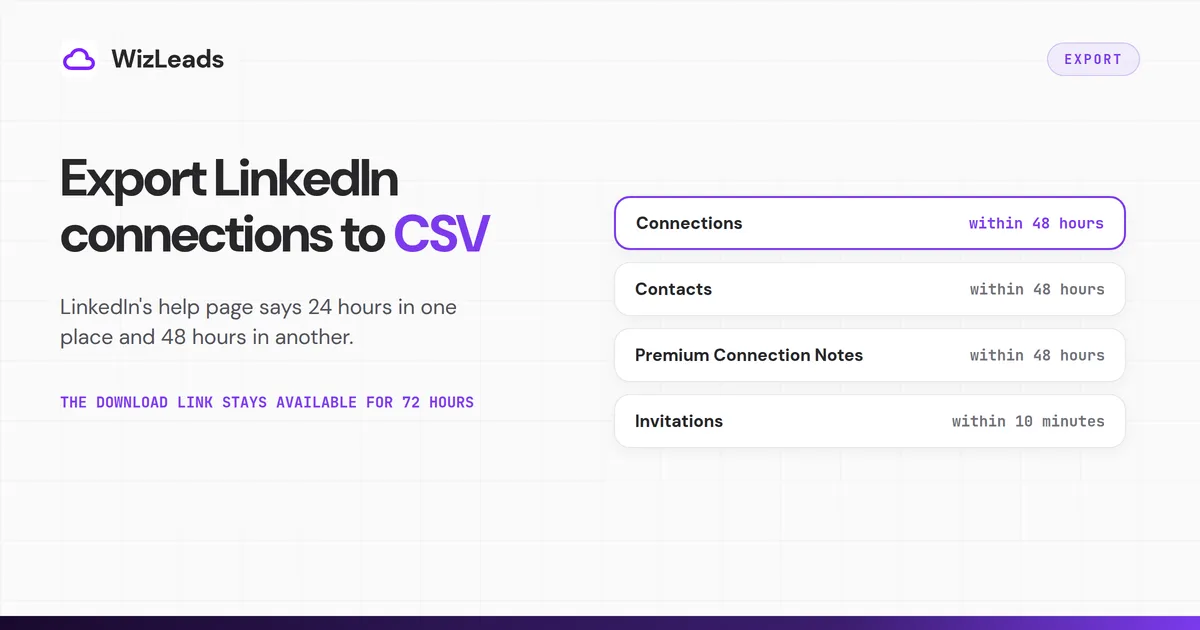
LinkedIn's download-your-data page gives two different waits. Its intro says that if you request the larger download, you get an email "within 24 hours". Further down, the page sorts every file by delivery time. The group that holds Connections and Contacts is headed "Available within 48 hours".
The intro also says that picking a specific type of data brings an email within minutes. The Connections file is not in the minutes group, though. That group, headed "Available within 10 minutes", holds Invitations. By LinkedIn's own grouping, Connections and Contacts fall outside the minutes promise.
LinkedIn does not reconcile the two figures, so plan for the longer one. Wait the full 48 hours before you decide anything went wrong. Once the email arrives, the download stays available for 72 hours, so save the zip file the same day.
If Connections.csv is missing from your archive
Some members report an archive with no Connections.csv in it, or a request button that will not work. A Reddit thread in r/linkedin collects both reports. One reply says a new request can be greyed out until the first archive has been processed and sent. Replies in the same thread split on the file itself: some say the larger archive still held it, others say it stopped arriving.
Work through these checks in order:
- Open the zip and search every folder for Connections.csv before you decide it is missing.
- Give the request the full 48 hours, because Connections sits in that group.
- If the request button is greyed out, wait for the first archive to arrive before you request again.
- If the next archive still has no Connections file, request the larger archive once more. LinkedIn's help page lists Connections as part of the archive, so a fresh request is worth the wait.
These are community reports, not LinkedIn documentation.
What is inside the export
LinkedIn describes Connections.csv as holding the first and last name, public profile URL, email address, company, position and connection date for every 1st-degree connection. LinkedIn lists these as a sentence, not as column headers, and its help pages give no header spellings. Check the first row of your own file before you rely on a name.
If your file opens with a line of notes above the column names, delete it before you sort or import. To work with the file in a spreadsheet, unzip the download and open Connections.csv in Excel or Google Sheets.
The field list has no phone number, location, headline or company website. If you need a website for each person, you add it yourself.
The export page also warns that the CSV and vCard formats do not support all characters. It names Chinese, Japanese and Hebrew as languages that are not supported, so check those names after you export.
The archive holds more than Connections.csv. These four files describe your network:
| File | LinkedIn's delivery group | What LinkedIn says it holds |
|---|---|---|
| Connections | Available within 48 hours | Name, profile URL, email, company, position and connection date for 1st-degree connections |
| Contacts | Available within 48 hours | Contacts imported on LinkedIn, with names, phone numbers and email addresses |
| Invitations | Available within 10 minutes | Invitations sent and received, with names, URLs, date sent and message |
| Premium Connection Notes | Available within 48 hours | Notes you wrote about connections, with dates, names and profile URLs |
The table follows LinkedIn's download-your-data page.
Why export LinkedIn connections with email gives blank cells
If you want to export LinkedIn connections with email addresses, expect gaps. LinkedIn says the Connections file includes an email only when that connection allows it in their privacy settings.
Each member controls a download toggle. On LinkedIn's email visibility page it sits under Settings & Privacy > Visibility > Visibility of your profile & network > Email visibility. Set to Yes, it lets their connections download their primary email address in a data export. Set to No, it keeps the address out.
The page does not state which setting a member starts with, and LinkedIn's help pages give no share of members who allow downloads.
Who can see an email is a separate setting. By default, LinkedIn says, a member's primary email is visible to their direct connections. It is also visible to people who are their email contacts, and to approved apps such as Outlook that a connection links to LinkedIn. So a connection's Contact Info can show you an address while their row in your file stays blank.
What does come through is the primary address, which may be personal rather than work. Nothing in the file says whether it still receives mail, so verify it before you send.
Contacts vs connections: which file you get
LinkedIn uses the two words differently. A contact is someone you have messaged or invited, or saved by syncing an address book. A connection is a contact with a 1st-degree link, and not every contact is one.
LinkedIn's pages disagree on what you can export. Its export page says you currently cannot export contacts who are not 1st-degree connections. Its download-your-data page lists a Contacts file in the same archive, holding names, phone numbers and email addresses of contacts imported on LinkedIn.
The Contacts file appears to hold address-book contacts you imported yourself, per the page's own wording. The same page says LinkedIn provides only your own data, not other members'. LinkedIn does not reconcile the two pages.
Clean the file and import it into Google, Outlook or HubSpot
A raw Connections.csv is not ready for most import tools. Work through this list first:
- Delete any note rows above the column names, so the header sits on row 1.
- Save as a CSV with UTF-8 encoding. Outlook recommends it, and HubSpot requires it when a file has foreign-language characters.
- Rename the columns to match the target. The table below shows Google's.
- Decide what happens to rows with a blank email before a CRM import.
- Split the file into batches of 3,000 rows or fewer if it goes to Google.
Google tells you to use the headers from its template so data lands in the right fields. This table maps the fields LinkedIn lists to Google's template headers:
| LinkedIn field | Google Contacts template header |
|---|---|
| Email address | Email 1 - Value |
| First name | First Name |
| Last name | Last Name |
| Company | Organization Name |
| Position | Organization Title |
| Profile URL, connection date | Notes (join the two in one cell) |
Google Contacts
On a computer, open Google Contacts, click Import on the left, choose Select file, pick your CSV and click Import (Google's steps). Google lists importing more than 3,000 contacts at a time among the causes of import problems, and tells you to split larger files. It also names a limit of 25,000 contacts.
Outlook
In Outlook on the web or Outlook.com, select People in the navigation bar, then Manage contacts > Import contacts from the ribbon. Choose Browse, pick the CSV, select Open and then Import (Microsoft's steps). Microsoft recommends UTF-8 because it works for all languages and alphabets. It adds that without UTF-8 the import tool may not display all text correctly.
HubSpot
HubSpot's import-file guide lists Email as the property required to create contacts, with first and last name as optional columns. It also asks for one sheet, a header row that matches HubSpot properties, and UTF-8 if the file has foreign-language characters. Because Email is required, rows with no email need an answer before you import. Fill them first, or keep them in a separate file.
Fill the blank emails with WizLeads
WizLeads' email finder finds a work email from a person's first name (or full name) and the company's website. It does not take a LinkedIn profile URL. Connections.csv has first name, last name and company but no website, so add a company-website column before you upload. WizLeads' CSV upload asks for a first-name column and a company-website column, with last name optional.
WizLeads charges 3 credits for each email it finds and nothing for a miss. Freelancer lists at $39 a month for 10,000 credits, which works out to $11.70 per 1,000 emails found at list price. That is a unit cost, not a bill for any particular file.
The free tier gives 500 credits once. WizLeads holds 3 credits per row when an upload starts. It does not charge for rows where it finds no email, so 500 credits cover a test of up to 166 blank rows.
WizLeads' personal-email lookup costs 5 credits per email found. It needs the Sales Navigator ID of a profile, not the public profile URL in Connections.csv, so this file cannot feed it.
For the addresses LinkedIn did include, verify them before they go into a sequence. WizLeads' verifier charges 0.5 credits per email processed, whatever the result.
People outside your network and Sales Navigator lists
LinkedIn's export stops at your own data. Its download-your-data page says LinkedIn provides only your own personal data and nothing from other members. Sales Navigator adds no export of leads either. LinkedIn's Sales Navigator help says it does not offer a CSV or XLS export of account and lead information, and points Advanced Plus users to CRM Sync instead.
WizLeads' Sales Navigator scraper fills that gap for people who have Sales Navigator. WizLeads scrapes Sales Navigator, not free LinkedIn, and it needs a Sales Navigator search or list URL to start. Without Sales Navigator you cannot build that URL. In account-less mode it scrapes a search URL without your LinkedIn account, at 2 credits per lead.
Saved lead lists and 1st-degree filters belong to your account, so account-less mode cannot see them. For those, you connect your own LinkedIn account inside WizLeads through its browser extension, and the price drops to 1 credit per lead.
The scrape then runs on your account. LinkedIn's help page on prohibited software says it does not permit third-party software that scrapes or automates activity on the site. It adds that members who use such tools "risk having their accounts restricted or shut down." Our walkthrough of exporting leads from Sales Navigator covers the full workflow.
What LinkedIn says about tools that automate
LinkedIn's User Agreement bars members from using unauthorized automated methods, bots included, to access the service or to add or download contacts. It also bars software that scrapes profiles or other data, and LinkedIn's prohibited-software page says any member who uses such tools is in violation of the agreement.
The built-in export in the steps above is the route LinkedIn gives you for your own connections. Weigh any tool that automates LinkedIn against those rules before you connect an account to it.
FAQ
How do I get contacts from LinkedIn?
On a computer, open Me > Settings & Privacy > Data privacy, click the data-download link under How LinkedIn uses your data, choose the data you want or the larger data archive, and select Request archive. LinkedIn sends an email with the download to your primary email address, and it stays available for 72 hours. LinkedIn's help page gives the wait as within 24 hours in its intro and Available within 48 hours for the Connections file.
How do I export contacts to a CSV file?
Request the archive as above, download and unzip it, and open Connections.csv. It is already a CSV file, so it opens in Excel or Google Sheets. To export LinkedIn contacts to Excel, open the file there and delete any note above the column names before you sort or import. The separate Contacts file holds address-book contacts you imported on LinkedIn.
Can I get someone's email address from LinkedIn?
Sometimes. By default, LinkedIn shows a member's primary email to their 1st-degree connections, in approved apps such as Outlook that a connection links to LinkedIn, and to people who are their email contacts. Each member can change that setting, from only themselves up to anyone on LinkedIn. The Connections file includes a connection's email only if they allow downloads. A work-email finder such as WizLeads' needs the person's name and company website instead.
How do I export all of my contacts?
LinkedIn's data archive covers your own data. The Connections file lists your 1st-degree connections, and the Contacts file lists address-book contacts you imported. People outside your network show up in the Invitations file, for invitations sent and received, and in the Contacts file, for contacts you imported. Request the archive, allow up to 48 hours for the files LinkedIn groups under that wait, and check both files.
Why is my LinkedIn export missing emails?
LinkedIn includes a connection's email only when that connection allows downloads in their privacy settings, so blank cells are expected. LinkedIn gives no figure for how many members allow it. The address that does appear is the member's primary email, which may be personal. A work-email finder can fill the gaps if you add each company's website to the file.