WizLeads


TL;DR
Sales Navigator has no export button, so every way out is a workaround: copying by hand, a Chrome extension, a cloud tool that runs on your LinkedIn session, or WizLeads' account-less scraper, which never touches your account. Each search shows at most 2,500 leads, so split bigger territories into smaller searches. Pick the method by how many leads you need and how much risk your LinkedIn account can take.
The work and the risk sit in the last mile, from Sales Navigator into your CRM. LinkedIn says it "currently doesn't offer the option to export account and lead information from Sales Navigator into a CSV or XLS file", and Core and Advanced have no lead-list API either. The one sanctioned exit is CRM Sync on the custom-priced Advanced Plus tier, which LinkedIn says syncs leads and accounts with Salesforce, Microsoft Dynamics and HubSpot. Everything else is a workaround, and there are four.
We have used all four, from copy-paste to a cloud pipeline that never touches our LinkedIn account. Below we cover what each costs, risks, and where it stops working. This guide assumes you have a seat.
LinkedIn Sales Navigator export to Excel in five steps
Sales Navigator has no native lead export, so a file for Excel comes from one of four workarounds. The usual one is an outside export tool that hands you a CSV, which you import into Excel and save as .xlsx.
- Build your search in Sales Navigator. To download a lead list from Sales Navigator through a tool, open the list instead. LinkedIn lets you view up to 2,500 lead results per search, and a saved list holds up to 1,000 leads. An account search shows up to 1,000 results.
- Send it to a tool like WizLeads. A cloud scraper takes the URL from the address bar: paste it and run the export (a list URL starts
linkedin.com/sales/lists/people/, and support for it varies by tool). A Chrome extension adds an export button to the page, so keep the search or list open and click it. - Download the CSV.
- Import the CSV into a blank Excel workbook: Data, then From Text/CSV on Windows, or Data, then From Text (Legacy) on Mac. Set the origin to Unicode (UTF-8) and the delimiter to comma. Microsoft says Excel keeps 15 digits of precision and can convert large numbers to scientific notation, so on Windows set any long ID column to Text under Transform Data.
- Save the workbook as an Excel Workbook (.xlsx).
Each setting is explained in opening a Sales Navigator export in Excel. The four methods below differ in time, cost and account risk.
Why there is no export button
The absence is deliberate. Sales Navigator is sold per seat, and a seat that could dump its whole result set to CSV would be bought once, exported, and cancelled. LinkedIn's User Agreement makes the same point in legal form, prohibiting bots and other automated methods to access the service or copy data from it. So the product keeps you working inside the interface.
CRM Sync gets leads into your CRM but not their emails. LinkedIn's contact creation help page says it creates a contact from a lead page or lead list and pre-fills only first name, last name, job title and country. Your rep types in the email and phone number, because Sales Navigator has no email to supply.
LinkedIn's help centre adds that a member's email is by default shown to their direct connections, and the member can change who sees it. Even the sanctioned route leaves your team to source every email itself.
Every method below is a workaround, and each charges you in a different currency: your time, your money, your LinkedIn account, or some mix.
The export buttons that do exist
Spend enough time in the interface and you will find something labelled Export. Two of them exist, and neither hands you leads.
Admins on Advanced and Advanced Plus can export a Usage Report, per LinkedIn's help page for it. Click Admin, open Usage Reporting, then click Export in the upper right and choose Export CSV. The file describes how your team uses their seats and contains no prospect data.
The main LinkedIn platform separately lets you export your own connections as a CSV. That covers people who already accepted your request, and it carries an email address only where their privacy settings allow it.
A third button gets described often enough to be worth naming: an export icon inside a saved lead list. Several current guides walk you through clicking it, but LinkedIn's help centre says no such export exists. If a walkthrough tells you to click Export in a lead list, check the interface before you plan around it.
The four export methods
Four workarounds exist to export Sales Navigator leads into a file you can use. They deliver much the same CSV. What separates them is which currency they bill you in, which the tested Sales Navigator scrapers list lays out tool by tool.
| Method | Entry price | Speed | LinkedIn account risk | Practical ceiling |
|---|---|---|---|---|
| Manual copy-paste | free | ~1 hour per 100 leads | none | dozens |
| Chrome extension scraper | Evaboot from $9/mo | fast, runs on the vendor's side once launched | medium | daily quotas |
| Cloud scraper (your session) | PhantomBuster from $56/mo billed annually | fast, runs server-side | low to medium | daily limits |
| Cloud scraper, account-less | WizLeads from $39/mo | fast, fully managed | none | search-size limits only |
PhantomBuster's, Evaboot's and WizLeads' prices come from their own pricing pages.
Method 1: manual copy-paste
Open a profile, copy the name, title, and company into a spreadsheet, go back, repeat. It is free, there is nothing to install, and nothing for LinkedIn to detect.
At small numbers this is the right call. Twenty named target accounts, where you read each profile anyway to write the first line, cost an hour and leave better notes than any scraper would.
Past a hundred leads the arithmetic ends the argument. Working steadily, we managed about a hundred leads an hour, so a thousand leads is ten hours of copying. You finish holding names and job titles and not one email address, which means the enrichment work is still ahead of you.
Method 2: Chrome extension scrapers
Evaboot and similar tools install into your browser and add an export button to the Sales Navigator interface. You run a search, click the button, and the export pages through the results on your logged-in LinkedIn session, then hands back a CSV. Most bundle email enrichment into the same click. Anyone searching for a LinkedIn scraper or a LinkedIn lead extractor tends to find this category first, because install-and-click is the easiest workflow to demo.
Evaboot's pricing page lists Starter at $9 a month for 100 credits, Grow at $29 for 400 and Scale from $49 for 1,000, with stops up to $299 for 15,000, then a custom Enterprise tier. One credit buys an exported lead with its verified email included, and a lead with no email found still costs one credit. Wiza used to sit in this category. Its help centre says exporting from Sales Navigator search pages, lead lists and account lists is no longer available as of 19 August 2026.
The first cost of an extension is exposure. The export runs on your own LinkedIn session, so LinkedIn's automation detection is pointed straight at your account. Extension vendors answer this with daily caps, which is a sensible response and also an admission of the problem.
The second is that your session has to hold. Evaboot's own help centre says you can close the tab or even shut down the computer while an export runs, because it keeps running on Evaboot's side. You cannot log out of LinkedIn before it finishes, since that ends the session the export reads from.
The third is the ceiling. Sales Navigator displays at most 2,500 lead results per search, so an extension can only reach 2,500 no matter what the result counter claims. Bigger territories have to be sliced into sub-searches by hand. We wrote up the mechanics of that cap in Sales Navigator export limits.
Method 3: cloud scrapers using your session
PhantomBuster and Lobstr move the work off your machine. You give the tool your LinkedIn session cookie, paste a search URL, and the extraction runs on their servers. You can close the laptop, schedule runs overnight, and chain jobs together.
Account exposure does not shrink. The requests still carry your session cookie, so LinkedIn still sees your account doing the collecting. LinkedIn's help centre says members who use such tools "risk having their accounts restricted or shut down." Slower settings improve your odds but do not remove the mechanism.
Pricing in this tier is metered several ways. PhantomBuster's pricing page meters execution time and email credits separately (plus AI and URL-finder credits an export does not use).
Billed annually, Start is $56 a month for 20 hours of execution and 500 email credits. Grow is $128 for 80 hours and 2,500 email credits, and Scale is $352 for 300 hours and 10,000 email credits. Paying month to month those same tiers are $69, $159 and $439 (PhantomBuster's pricing page).
The credit definition catches people out. PhantomBuster's own documentation defines one email credit as one attempt to find and verify an email for one profile. At a 60 percent find rate, Scale's 10,000 credits return roughly 6,000 emails. Work out your cost per finished lead before you subscribe.
Method 4: cloud scraper in account-less mode
The structural fix is taking your account out of the loop, so that whatever scrapes Sales Navigator is never signed in as you. For a search URL, the extraction never touches your session, so nothing ties the activity to you. There is nothing for LinkedIn to restrict on your side and no daily cap to work around. Saved lists work differently, and the lead-lists section below covers them.
WizLeads is a LinkedIn Sales Navigator scraper that runs this method. It performs the extraction on its own infrastructure. You paste the search URL, it collects the results without your credentials or cookies, and the CSV comes back with enrichment and verification already applied.
Running an export, start to finish
1. Build the search in Sales Navigator. Filter as narrowly as you would for your own reading: job title, seniority, headcount, industry, geography, and whatever else defines the account. Then copy the URL out of the address bar. That URL encodes every filter you set, which is the only thing the scraper needs.
Check the result counter before you copy it. Under 2,500 and the search fits in a single run. Over it, split the search yourself or turn on splitting in step three.
2. Paste the URLs. Open a new task, name it something you will still recognise in three weeks (ours look like Marketing Directors | Finance | HC 51-200), and paste the URLs, one per row. Each one validates as you add it, so a malformed or expired URL shows up before the run.
3. Set the configuration toggles. These four switches set the run's cost and behaviour:
- Account-Less Scraping runs the extraction on shared infrastructure with no LinkedIn account connected, at 2 credits per lead (1 when you connect an account). It covers search URLs only. A saved list needs a connected account.
- Enrich Business Emails finds and verifies a work email for each lead in the same pass, at 3 credits per email found. Leads that come back without one cost nothing extra.
- Enrich Company Website fills in the company domain where LinkedIn left the field blank. Turn it on if the CSV is heading into a scoring or routing workflow that keys off domains.
- Smart Link Splitting handles searches above the 2,500 cap: it checks the lead count and splits the link into chunks of 2,000 results or less, so you never lose results. A search far above 2,500 comes back as one file. This one requires the Agency plan or above.
The panel shows the credit cost before you create the task: 2 to 5 credits per result, from account-less scraping alone to account-less scraping with an email found.
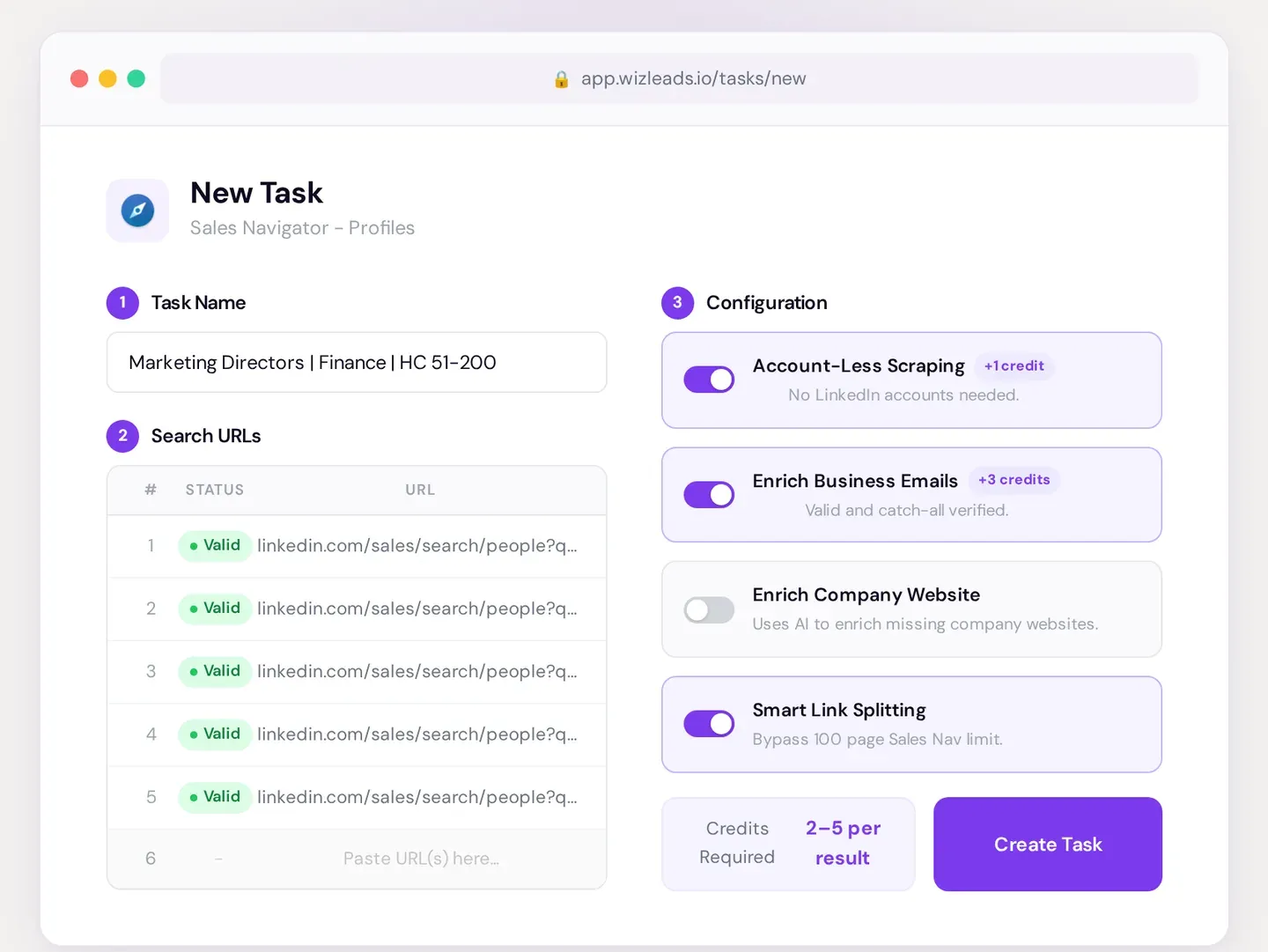
4. Create the task and leave it alone. Progress updates live, and a 5,000-lead task usually finishes in 15 to 20 minutes. Nothing on your side has to stay open, since the run happens server-side.
5. Download the CSV. The file carries 35+ fields per lead, in a format a sequencer or a CRM can import.
You can also create the same task over REST: POST /tasks/add with your API key, the search URL, and useAccountless and enrichEmails as JSON booleans. That endpoint is how the Clay, n8n, Make, and Zapier workflows hook in.
What a run costs
Take one full people search, 2,500 leads, account-less with email enrichment switched on:
- Scraping: 2,500 leads at 2 credits each is 5,000 credits
- Emails: at an assumed find rate of 50% to 60%, 1,250 to 1,500 addresses found at 3 credits each is 3,750 to 4,500 credits
- Total: 8,750 to 9,500 credits
The $39 Freelancer plan carries 10,000 credits, so that search's bill fits inside it, and unused credits roll forward a month. WizLeads holds 3 credits per row while emails are being found and releases them for rows with no email when the task completes. So one account-less run of all 2,500 leads needs up to 12,500 credits on hand, and on Freelancer you run it in batches.
The first month on that plan is $1, enough to run the search above end to end before you decide. Verification is included in the enrichment price. Verifying a list you already have runs 0.5 credits per address, which puts the same $39 at 20,000 verifications.
Compare tools by what a finished lead costs. The same 2,500-lead job on Evaboot's ladder uses one credit per lead with its email included, so 2,500 credits. The smallest Evaboot plan that holds that is $99 (Evaboot's pricing page). Run that arithmetic on any tool you are considering.
How to export your saved lead lists
Saved lead lists are where this usually turns urgent. LinkedIn's help page on saving leads says you can save 25 leads at a time from a results page, 1,000 leads in each list and 10,000 in total. Work at that for a few months and you hold several thousand curated prospects in exactly one place.
All four methods above apply, though extensions and cloud tools reach a list in different ways.
Extensions read whatever the page displays, so on a lead list you open it and click the vendor's button.
Cloud tools work from a URL, and a lead list has one. It is linkedin.com/sales/lists/people/ followed by a long numeric ID, and you copy it from the address bar like a search URL. Account lists sit at linkedin.com/sales/lists/company/, and whether a tool parses those formats is a separate question from whether it parses search results.
For WizLeads, a saved lead or account list works only with your own LinkedIn account connected inside WizLeads, at 1 credit per lead. Account-less mode covers plain search URLs only. If months of curation live inside lists, that decides which mode you use, so ask any other vendor the same question before you pay.
A lead list is a fixed set of people you picked, so it changes only when you change it. A saved search is a set of filters, and Sales Navigator keeps matching new profiles against it. For a file that refreshes as new people enter your territory, schedule the export against a saved search.
Opening a Sales Navigator export in Excel
Excel opens a CSV by guessing two things from your system settings: the character encoding and the column separator. Accented names arrive as é and ü, or every field ends up crammed into column A. Import the file instead of double-clicking it and you set both yourself.
On Windows, following Microsoft's import steps: open Excel first and create a blank workbook, go to Data, then From Text/CSV. Pick the file, set File Origin to 65001: Unicode (UTF-8) and Delimiter to Comma. Check that the preview shows names correctly with each field in its own column, then click Load. The delimiter step matters most on European Windows installs, where the system list separator is a semicolon, so double-clicking never splits the columns properly there.
On Mac, Microsoft documents Data, then From Text (Legacy). Pick the CSV file and click Open, choose Delimited in the Text Import Wizard, set File origin to Unicode (UTF-8) and tick Comma. The menu names move between Excel versions, but those two settings do not.
LinkedIn IDs and company IDs are numeric. Microsoft says Excel truncates numbers to 15 digits of precision and can convert large numbers to scientific notation. Set any long ID column to Text during the import.
On Windows, click Transform Data in the preview, select the column and set its Data Type to Text. Profile URLs are safe, since letters and slashes stop Excel treating them as numeric.
Google Sheets sidesteps all of this: File, Import, upload, and it reads UTF-8 without asking.
Cleaning the file before it goes anywhere
Duplicates and filter mismatches show up on any export bigger than a few hundred rows.
Duplicates arrive whenever you split a search to get under the 2,500 cap and merge the pieces back. Splits by geography or headcount are mostly clean, but some people still land in two segments, so the same person can show up in two files.
Deduplicate on the LinkedIn profile URL, not on name or email. Names repeat across different people, and plenty of rows have no email at this stage. In Excel, select the data, then Data, Remove Duplicates, then untick every column except the profile URL.
Deduplicating rows will not stop two reps working the same person once the file is in your CRM. Check owner, sequence and do-not-contact status before you import, and test whether blank cells overwrite fields the CRM already holds.
Filter mismatches arrive from Sales Navigator itself. Its filters match against profile text. A search for current heads of sales returns people who mention that title in a past role. Keyword filters catch the word wherever it appears.
No export is exempt, including one built on a careful boolean search. Spot-check thirty rows against your own filters before the file reaches a sequencer. A title mismatch reads as a broken mail merge to the person receiving it.
What lands in the CSV, and what happens next
A complete export gives you three groups of fields:
- Person: first name, last name, headline, current title, tenure in role and at company, location, LinkedIn profile URL, Sales Navigator URL, LinkedIn ID
- Company: name, website, industry, employee count, revenue range, HQ, company type, specialties, year founded
- Email, where enrichment ran: the address, the mail provider, and whether the domain is catch-all
Enrichment and verification still stand between that file and a campaign.
Enrichment decides how many rows are usable at all. On the same 1,000 leads, the seven tools in the enrichment benchmark we ran returned between 25.9% and 67.0% verified-valid emails, a 2.6x spread from identical input. Picking wrong can leave well under half the list you paid to build.
Verification decides whether sending is safe. Keeping bounces under 2% is the common operator rule. The hard limits come from your sending platform, since Google's and Yahoo's sender guidelines set spam-rate limits and no bounce threshold. Mailgun's Acceptable Use Policy allows bounces up to 5% and says a breach may limit, suspend or terminate the account. Postmark requires a bounce rate below 10% or a server's sending can be suspended, and Instantly pauses a campaign above 5% after 200 sends by default.
In the 1,000-email verification test we ran, bounce rates ran from 0.15% to 3.72%. DeBounce posted the lowest, 0.15%, while rejecting 330 of the 1,000 addresses, against 148 rejections for WizLeads at 0.59%. We emailed every address at least one of the six verifiers approved, so an address one tool rejected but another approved was still mailed and counts in these bounce rates. The 96 addresses no tool approved went unsent, so the test cannot say how many of those were deliverable.
What actually gets an account restricted
The risk conversation around Sales Navigator exports comes in two unhelpful shapes: vendors implying there is no exposure, and forum threads implying a single export ends your career.
LinkedIn publishes no numeric daily export limit, which is why every vendor cap you see is that vendor's own guess. What the platform reacts to is pattern, and three patterns come up repeatedly:
- Pace no human could match. Two thousand leads pulled across an afternoon of ordinary browsing reads differently from the same two thousand in ten minutes.
- Two tools working one account at once. Running an extension and a session-based cloud tool against the same seat doubles the request rate from LinkedIn's side while you believe you are being conservative with each.
- Volume from a profile with no history. A seat opened last week with forty connections and no posting activity, pulling thousands of profiles, is the easiest signature there is.
LinkedIn says that after you disable the software or extension, a restricted account is re-enabled at the time given on the suspension notice. That is the temporary case. LinkedIn's account-restrictions page says automated inauthentic activity "can result in temporary or permanent restriction of your account", without saying how many warnings come first.
So the answer depends on volume. At a few hundred leads a month on a seat you could replace tomorrow, the exposure is real and small. At agency volume it is the same mechanism applied often enough that it eventually fires, and it fires on the account carrying your network.
Which method fits you
How to extract leads from Sales Navigator depends far more on your volume than on any tool's feature list. The criterion below is usable leads per hour of your own time, at a price you can defend to whoever pays the bill.
- Under 50 leads, one-off: copy and paste. Nothing to buy, nothing to configure, and you are reading every profile anyway.
- A few hundred leads a month, on a LinkedIn account you can afford to risk: a Chrome extension. Cheapest paid option, fastest to set up, and the daily caps will not bind at that volume.
- Thousands of leads a month, scheduling matters, account risk acceptable: a session-based cloud tool. Calculate cost per finished lead before subscribing, because multi-meter pricing hides it.
- High volume, multiple clients, or an account you cannot afford to lose: account-less cloud scraping for search URLs. No session involved, no daily caps, and the 2,500 ceiling handled by automatic splitting.