WizLeads


TL;DR
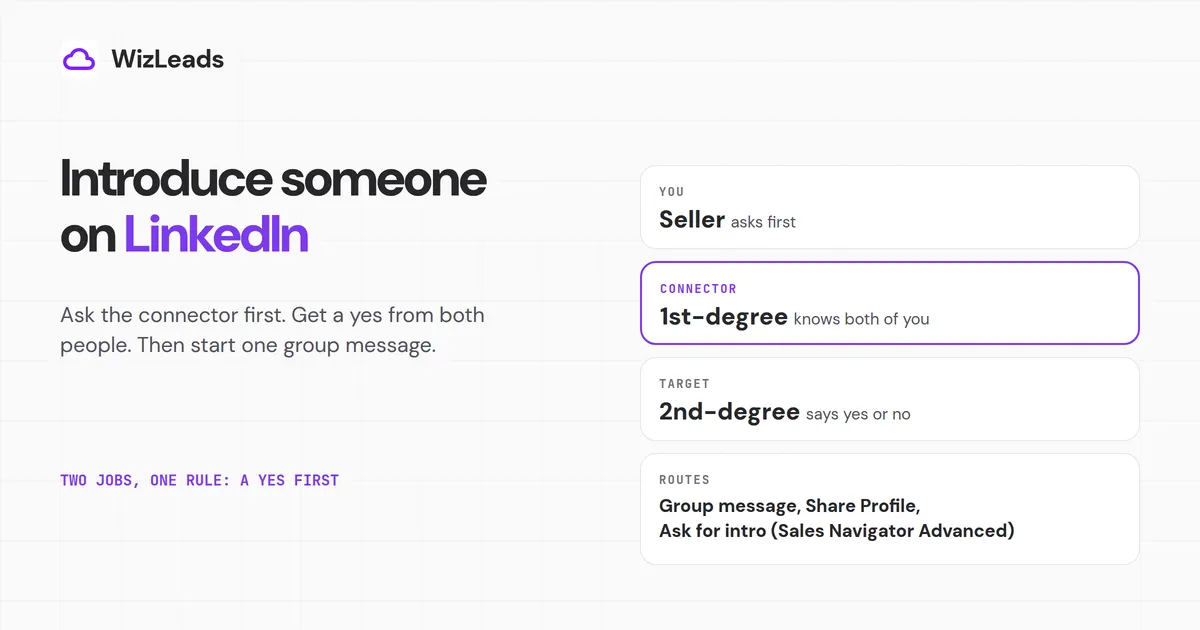
To introduce two people on LinkedIn, ask each for a yes first, then start one group message with both. To get a warm intro yourself, message the connector you share with your target, ask whether they know that person well enough, and hand them a short note to forward. LinkedIn's help pages describe no Introduce button for a free account, so an intro is an ordinary message, and Sales Navigator Advanced and Advanced Plus include an Ask for intro feature. One rule holds on every route: nobody hears from a stranger until they have said yes.
Two jobs, two routes
You open a CFO's profile and see one shared connection, a former coworker. A cold message is a stranger asking for time. A note from the coworker who knows you both reads differently. That is a warm intro, and the connector does the work.
The other job runs the other way. A customer of yours should meet a partner, and you are the person both know. Now the risk is yours: a bad match costs your name.
| Your job | Route | What you send |
|---|---|---|
| Reach a prospect you share a connection with | Ask the connector, then give them a note to forward | One message to the connector, then a short blurb |
| Introduce two of your connections | Ask each for a yes, then start a group message | A permission message to each, then one message to both |
| Reach someone you share no connection with | Skip the intro: a connection request with a note, or an InMail on a paid plan | A short note |
Job seekers asking for a referral can use the same ask. The examples here are about selling and partnering.
Is there an Introduce button on LinkedIn?
LinkedIn's help pages describe no such button for a free account. Its page on ways to connect lists three places to connect, never mentions an introduction, and links to Share Profile. Its messaging page says you can only message your connections.
The one introduction route LinkedIn documents for every account is Share Profile, which it describes as a way to introduce a member to someone in your network. It sends a message that carries the member's profile. The steps are further down.
The history is messy, and the dates do not agree. Greg Cooper, a LinkedIn trainer, wrote in October 2015 that LinkedIn had discontinued its introduction feature, which gave free accounts five introductions and paid accounts 25. LinkedIn's own sales blog still showed a Get Introduced dropdown in a re-run post dated December 2018. In June 2025 a member asked in a LinkedIn post why LinkedIn has no Introduce button, and noted you can message two people at once.
We state no removal date, because none of these sources is LinkedIn's own record of a change.
Sales Navigator is different. LinkedIn's help page for Ask for intro using AI says the feature is for Advanced and Advanced Plus and is on by default. It drafts an introduction request to a mutual or TeamLink connection, and you edit the draft before you send it. The page adds that LinkedIn may limit or change the feature.
Find the mutual connection first
Start on the profile. LinkedIn says members with connections in common can see those shared connections. A member can hide their connection list, and then their profile has no See connections option. LinkedIn says you can still view shared connections from the People tab of search results.
Free search has two filters for the same job. Connections narrows People results to 1st, 2nd or 3rd+ degree, and Connections of sits under All filters. Set Connections to 2nd, then add the name of a connection you trust as Connections of. Everyone who comes back is two steps from you through that person.
Sales Navigator does more of this work. Its Connection filter has 2nd, Group and TeamLink values, its Connections of filter takes a name, and its results highlight leads with mutual connections. LinkedIn caps a search at 2,500 leads across 100 pages.
TeamLink adds a TeamLink connections of filter: type a lead's name and it lists teammates connected to them. LinkedIn says TeamLink is only on Advanced and Advanced Plus, and that at least one teammate must be connected to the lead. One LinkedIn marketing page labels TeamLink connections of as Advanced Plus only, so check with LinkedIn before you buy Advanced for it.
When you need fifty CFOs in a list, we build a Sales Navigator scraper, WizLeads, that takes the URL of a Sales Navigator search and returns its leads. A search with the 2nd-degree filter depends on your own network, so it runs with your account connected, at 1 credit per lead. It does not scrape free People search or a company's People tab, and it has no mutual-connection field. You still read the shared name on LinkedIn, and our advanced search guide lists the filters each plan gets.
Ask the connector for the intro
Ask before you send anything to forward. Tim Metzner said in a February 2025 video post that you should ask first, by call, text or email, whether the connector knows the target well enough. His second step is a clean note the connector can forward. His rule as the connector: "I'm not going to connect you unless that person gives me the thumbs up."
You can only message your connections, so the connector must be a 1st-degree connection. Your target is usually a 2nd-degree contact, which is why you need the connector at all. Send message A. It asks a yes or no question and makes a no easy.
Hi [Name], I see you and [Target Name] at [Company] are connected. Do you know them well enough to introduce me? A no is fine. If it's a yes, I'll send two lines you can paste, so it takes you a minute.
LinkedIn states no character limit for a message to a connection. Keep the ask this short anyway, so the connector can answer in one line.
Ask one connector at a time, or tell each that you asked the other. Two forwards to one CFO look careless. That is our view, and LinkedIn has no rule on it.
On a yes, send message B for the connector to forward. It says who you are, what you want and why this person, and it gives the target a way out.
Hi [Target Name], [Seller Name] asked me to pass this on. They help [Company] teams [what you do] and would like 15 minutes to hear how you handle [topic]. If it's not for you, tell me and I'll let them know.
With Advanced or Advanced Plus, Ask for intro drafts message A for you. Read the draft for an easy no before you send it.
How to introduce two people on LinkedIn
Ask each person for a yes in a separate message, then start one group message with both. That way neither of them is surprised by the other.
Chris Kinner described the order in an August 2025 post: tell person A you think they would enjoy a chat with B, ask if they want the intro, then repeat with B. If either declines, he can blame it on the other. He also admitted he often skips the step and sends a cold intro to both.
A commenter, Amanda Austin, said a group chat that tells each person why they should talk is fine with her. The group chat is the easy part, and the skipped yes is where it goes wrong.
Send message C to each person. It names the other person, says why you thought of them and keeps the no cheap.
Hi [Name], [Other Name] at [Company] wants to meet someone who knows [topic], and I thought of you. Would you like an intro? Say no if it's not a fit. It won't change anything between us.
When both have said yes, open Messaging and start a new message with Compose. Type both names, write the intro and click Send. LinkedIn's group chat page says a group chat takes two or more of your 1st-degree connections, up to 50 people, so you must be connected to both. LinkedIn says every member is an admin, so either person can add or remove people later.
Dee Poku Spalding wrote in June 2025 that she always adds context to an intro, so give each person a line about the other, as in message D.
[Name 1], meet [Name 2]. You both said yes, so here you are. [Name 1] leads [role] at [Company] and knows [topic]. [Name 2] runs [Company] and wants to ask about it. Reply here or move to email, whichever suits you. Over to you.
LinkedIn says group chats are for conversations with your connections and not for mass messaging, so keep it to the two people.
Share Profile is the lighter version. On desktop, open the member's profile, click More in the introduction section, click Share Profile, type the names of the connections you want to send it to and click Send. On mobile, tap More, then Share via private message.
LinkedIn says it sends the profile in a message. The person you share does not get a message, and nothing asks anyone to accept; that part is our reading of the page. Use it to point a connection at a profile after they have agreed. For an actual intro, use the group message.
An intro can also go by email once both people agree. Our introduction email templates have the permission check and the intro in that format.
LinkedIn introductions on free, Premium and Sales Navigator
As of November 2026, this is what LinkedIn's help pages say each plan can do.
| Route | Free | Premium | Sales Navigator |
|---|---|---|---|
| Group message to 2 or more 1st-degree connections (up to 50 members) | Yes | Yes | Yes |
| Share Profile | Yes, to connections | Yes | Yes |
| Message your connector | 1st-degree only | Same | Same |
| Message the target with no intro | Message request if same group or coworker; free to Premium members with Open Profile | InMail: 200 subject, 2,000 body | InMail: 200 subject, 1,900 body |
| Note on a connection request | 200 characters, 3 or 5 a month (LinkedIn says both) | Unlimited notes; one older page says 300 characters | Not stated on the pages we read |
| Find the connector | Connections filter and Connections of | Same | Connection filter (2nd, Group, TeamLink), Connections of, TeamLink connections of on Advanced and Advanced Plus |
| Ask for intro (AI draft) | No | Not included (LinkedIn may offer it to some) | Advanced and Advanced Plus |
The InMail row is why a paid plan helps when you have no connector: an InMail reaches a member outside your network, and our InMail guide lists the credits each plan gives. If you would rather rely on connection notes, our post on LinkedIn's connection limits sets LinkedIn's two free allowances side by side.
After the yes
Metzner's last steps are to answer within an hour or the same day and to honor the person who gave you their time in the meeting. Then tell the connector how it went and thank them.
Every route here comes down to one habit: ask first and wait for the yes. Message your connector today with message A before you draft anything else.