WizLeads


TL;DR
LinkedIn Boolean search works in three places: the main search bar on free LinkedIn, the keyword, title and company fields in Sales Navigator, and the search filters in Recruiter. You combine terms with AND, OR and NOT, typed in capitals, and group them with quotation marks and parentheses. How many operators a query can hold depends on the product: Sales Navigator allows a maximum of 15 in one search query, Recruiter has no limit, and free LinkedIn has one it does not put a number on. Unless we say otherwise, every rule below comes from LinkedIn's own pages, including the places where those pages disagree. The example strings are written for Sales Navigator prospecting.
The syntax LinkedIn documents
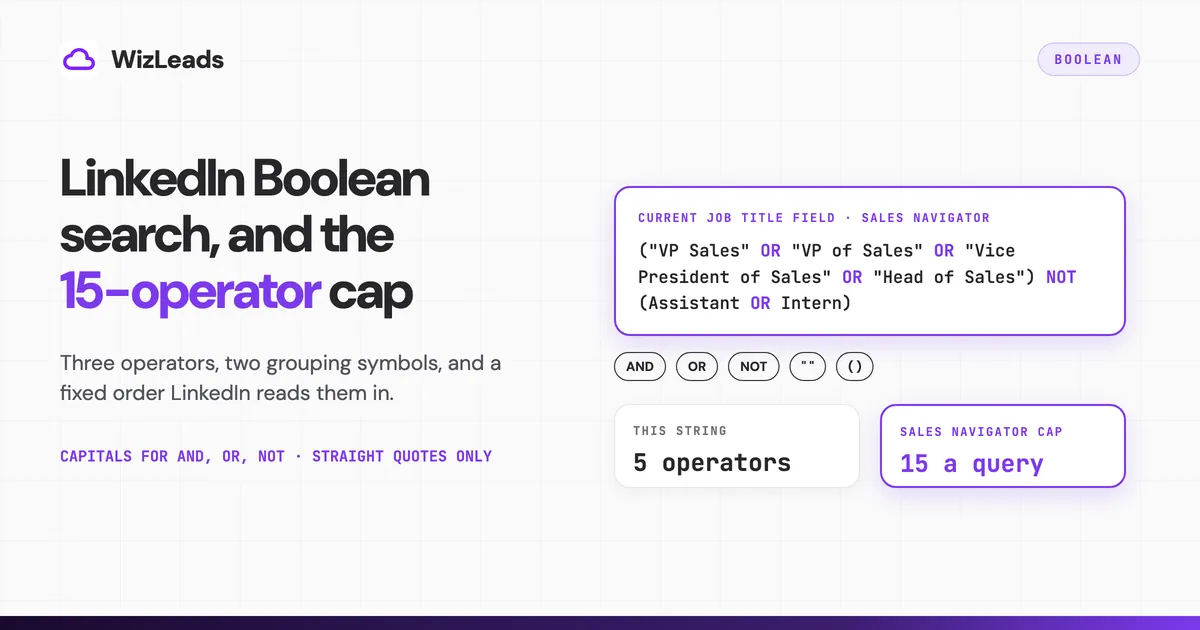
LinkedIn search operators come down to three words and two grouping symbols, the complete list in LinkedIn's Boolean search article, which it publishes word for word in its main, Recruiter and Sales Navigator help centres.
| Syntax | What it does | Example |
|---|---|---|
AND | every term must appear | Salesforce AND HubSpot |
OR | any one of the terms can appear | CFO OR "Finance Director" |
NOT | removes results containing the term after it | Founder NOT Stealth |
" " | matches an exact phrase | "Revenue Operations" |
( ) | groups terms so they are evaluated together | (CTO OR CIO) NOT Consultant |
If you are working out how to do Boolean search on LinkedIn for the first time, add five rules to that table:
- Type AND, OR and NOT in capitals, or LinkedIn says the search will not work correctly.
- Group with parentheses only. Square brackets
[ ], braces{ }and angle brackets< >count as ordinary characters, and the*wildcard is not supported. - Use AND and NOT instead of
+and-, which LinkedIn does not officially support. Google X-ray habits run the other way, since Google excludes with a minus sign. - Expect stop words such as by, in and with to be dropped.
- In Sales Navigator, use straight quotation marks only, since curly ones are not supported. Two terms with no operator between them are treated as AND.
Free LinkedIn keyword search runs through that main search bar, and LinkedIn does not say whether the Keywords section under All filters takes Boolean too. Beyond keywords, All filters on free LinkedIn narrows by connection degree, location, current and past company, school and industry, while years of experience, function, seniority level and company size are Sales Navigator and Recruiter only. Its Boolean page for LinkedIn.com documents no field prefixes such as title: or company: and no NEAR operator, so a string built on either relies on behaviour LinkedIn has not promised.
How LinkedIn reads a string that mixes operators
Say you want sales VPs and heads of sales, but only at SaaS companies, and you type:
"VP Sales" OR "Head of Sales" AND SaaS
You get everyone matching "VP Sales" at any company, plus heads of sales who mention SaaS. LinkedIn evaluates a string in a fixed order, the same on its main Boolean page and its Sales Navigator page:
- Quotation marks. Phrases are matched before any Boolean logic runs.
- Parentheses. Grouped terms are evaluated before anything outside the group.
- NOT, once quoted phrases and parentheses are resolved.
- AND, after NOT and before OR.
- OR, last, with the lowest precedence of the three operators.
AND outranks OR, so LinkedIn reads that string as "VP Sales" OR ("Head of Sales" AND SaaS). Parentheses fix it: ("VP Sales" OR "Head of Sales") AND SaaS.
NOT catches people the same way. Director NOT Assistant OR Intern looks like it excludes assistants and interns, but NOT runs before OR, so LinkedIn reads (Director NOT Assistant) OR Intern and adds every intern to your directors. Write Director NOT (Assistant OR Intern) instead.
One habit prevents both mistakes: whenever a string mixes OR with AND or NOT, put parentheses around each OR group.
Order also matters in a string of only AND and NOT, once an AND follows a NOT. LinkedIn reads Director NOT Assistant AND Marketing as (Director NOT Assistant) AND Marketing, which finds marketing directors who are not assistants. Type those parentheses yourself so the string shows that reading.
Where Boolean works: free LinkedIn, Sales Navigator and Recruiter
All three products read the same operators in the same order. They differ in where a string goes, how many operators it may hold and how many results you can open.
| Free LinkedIn | Sales Navigator | Recruiter and Recruiter Lite | |
|---|---|---|---|
| Where Boolean goes | main search bar | Search bar above results, title and company fields | typed in Job titles, Companies and Keywords; dropdowns on seven filters |
| Operator limit | exists, no number given | 15 per search query | none |
| Results you can view | 250 results (25 pages) | 2,500 leads (100 pages), 1,000 accounts (40 pages) | 1,000 candidates (40 pages) |
| Quotation marks | curly quotes not documented | straight only | pasted strings may not be recognised |
| AI search | natural-language search, no quotes; AI filters rolling out gradually | AI-assisted search announced as a pilot in 2023 | AI Search keeps Boolean and can write strings |
Boolean alone is no reason to buy a Sales Navigator seat, since free LinkedIn runs the same operators. What the seat adds is the title and company fields, the 50+ search filters LinkedIn's compare-plans page lists, and a results view ten times the size of free LinkedIn's. That page prices Core at US$119.99 a month.
LinkedIn's Boolean pages disagree with each other in three places. The older Sales Navigator Boolean page says about 15 operators where the newer limits page says a maximum of 15, a difference that barely matters.
That older page also says Recruiter takes Boolean only in its keyword field. Recruiter's own, newer Boolean page lists Job titles, Companies and Keywords, plus dropdowns on seven filters. We follow the newer Recruiter page for fields.
The Recruiter Lite conflict matters more, and we have not picked a side on it. An older LinkedIn page on Recruiter Lite search says LinkedIn is phasing out Boolean support there and tells you to upgrade to Recruiter. The newer Recruiter page documents Boolean in both products, and the limits page gives Recruiter Lite no operator cap. If Boolean is why you are buying Recruiter Lite, test it first.
LinkedIn Recruiter Boolean search
LinkedIn Recruiter Boolean search works two ways, according to Recruiter's own help page. You can type a string into the Job titles, Companies or Keywords filters, though the Project filter takes none. Or you can use the dropdown beside seven filters (Job titles, Location, Companies, Skills and Assessments, Schools, Industries and Spoken languages), where Must have means AND, Can have means OR and Doesn't have means NOT.
The Keywords filter reads the member's profile page, which makes Recruiter the only product where LinkedIn says what its keyword field scans. There is no operator cap, though LinkedIn warns that too many facets in one string can cause problems with results and suggests moving terms into the filter sections.
Boolean or LinkedIn's natural-language search
LinkedIn.com's updated people search can interpret a conversational query, such as sales leaders at SaaS companies in Austin. LinkedIn's help page says "natural language search does not support quotes", and sends anyone who wants exact keyword matching back to Boolean.
LinkedIn's AI-powered filters are rolling out gradually, so your account may not have them yet. LinkedIn does not document how the search bar decides whether a typed string is Boolean or plain language.
Recruiter keeps both. Its AI Search FAQ says a Boolean string in the search bar gives you the option of a traditional keyword search, and AI Search can create and modify Boolean strings. For Sales Navigator, LinkedIn announced AI-assisted search in September 2023 as a pilot for a limited number of customers, and we found no help page on where it stands now.
How Sales Navigator Boolean search works, field by field
LinkedIn Sales Navigator Boolean search takes a typed string in three places. The Search bar above your results is the keyword field, which LinkedIn's search page says accepts keywords and Boolean modifiers. The title and company fields take Boolean too, per LinkedIn's Sales Navigator Boolean page and a June 2025 post on LinkedIn's Sales community naming Job Title, Company and Keywords.
That Boolean page predates today's filter panel, which splits titles and companies into current and past, and LinkedIn's current filter definitions page never mentions Boolean. LinkedIn has not said whether Past job title, Past company or School take a typed string, so the strings here are written for Current job title and the Search bar.
Dropdown filters such as Industry, Function and Seniority level take no typed Boolean, per the same community post. You click Include or Exclude on each value instead, and LinkedIn does not say whether an Exclude click counts toward the operator cap. It also does not document what the Search bar scans, so when you mean a job title, put it in the title field.
Counting to 15
Count every AND, OR and NOT toward Sales Navigator's 15. LinkedIn calls quotation marks and parentheses grouping symbols and does not say whether they count, or what happens to a sixteenth operator. It words the cap per search query and says nothing about fields, so if you type Boolean into both the Search bar and the title field, budget 15 across the two.
The sales-leaders string in the next section uses 5: three ORs in the title group, then one NOT and one OR in the exclusions. Adding the noise block's four terms to that exclusion group takes it to 9, and eight more excluded terms would reach 17.
What comes back
LinkedIn says Sales Navigator results may include related keyword variations as well as exact matches, so expect some profiles your string does not spell out.
When the results look right, save the search. A saved Sales Navigator search keeps the keyword string with the filters, sends weekly alerts on new matches and can be shared with colleagues. A free account can save up to three searches, also with weekly alerts.
LinkedIn Boolean search examples for B2B prospecting
Each string uses straight quotation marks and balanced parentheses, and the operator column counts its AND, OR and NOT. After pasting, check the quotes survived, since many editors curl them automatically.
| Who you want | Paste into | Operators | String |
|---|---|---|---|
| Sales leaders | Current job title | 5 | ("VP Sales" OR "VP of Sales" OR "Vice President of Sales" OR "Head of Sales") NOT (Assistant OR Intern) |
| RevOps and sales ops | Current job title | 7 | ("Revenue Operations" OR RevOps OR "Sales Operations" OR "Sales Ops") AND (Head OR Director OR VP OR Manager) |
| Marketing leaders | Current job title | 7 | ("Head of Marketing" OR "VP Marketing" OR "VP of Marketing" OR CMO OR "Marketing Director") NOT (Assistant OR Intern OR Coordinator) |
| SaaS founders | Search bar | 7 | (Founder OR "Co-Founder" OR Cofounder OR CEO) AND (SaaS OR "B2B software") NOT (Stealth OR Student) |
| CRM-stack operators | Search bar | 3 | (Salesforce OR HubSpot) AND ("sales operations" OR RevOps) |
| IT decision-makers | Current job title | 7 | (CIO OR CTO OR "Head of IT" OR "IT Director" OR "VP of IT") NOT (Consultant OR Contractor OR Freelance) |
| Finance buyers | Current job title | 6 | (CFO OR "Chief Financial Officer" OR "VP Finance" OR "Finance Director" OR "Head of Finance") NOT (Assistant OR Intern) |
| Noise block | same field, inside the string's NOT group if it has one | 4 | NOT (Recruiter OR "Talent Acquisition" OR Staffing OR Headhunter) |
The sales-leaders string lists "VP Sales" and "VP of Sales" separately because LinkedIn puts its stop-word note inside its instructions for quoted phrases without spelling out how it applies there, and Recruiter's list for its Keywords field includes "of". The second spelling costs one operator.
Most rows sit at 5 to 7 operators, leaving room for your own exclusions. Where a string already ends in a NOT group, put the noise terms inside it rather than typing a second NOT, because LinkedIn does not say how two NOTs in a row are read. The block costs four operators either way.
Getting a Sales Navigator search under 2,500 with Boolean
Sales Navigator shows up to 2,500 lead results across 100 pages, or 1,000 account results across 40 pages, whatever the total says, per LinkedIn's search limits page. In our experience a search built on the Connections of filter loads only the first 1,000.
A search at or under those numbers exports whole, with a scraper that takes your Sales Navigator search URL or by hand, as our guide to exporting leads from Sales Navigator walks through.
Boolean is the first way down. Tighten the title string to the roles you sell to, add the noise block's exclusions and watch the count.
When the market is bigger than one search can show, NOT can cut it into segments that exclude each other. The first segment takes one group of titles, the second a new group minus the first, and the third a new group minus both:
| Segment | Operators | String for Current job title |
|---|---|---|
| 1 | 2 | ("VP Sales" OR "VP of Sales" OR "Vice President of Sales") |
| 2 | 5 | ("Head of Sales" OR "Sales Director" OR "Director of Sales") NOT ("VP Sales" OR "VP of Sales" OR "Vice President of Sales") |
| 3 | 8 | ("Chief Revenue Officer" OR CRO OR "Chief Sales Officer") NOT ("VP Sales" OR "VP of Sales" OR "Vice President of Sales" OR "Head of Sales" OR "Sales Director" OR "Director of Sales") |
Each segment carries every earlier one as an exclusion, so with three titles per segment the count climbs 2, 5, 8, 11, 14, and a sixth segment would need 17. Two titles per segment allows eight segments; four allows four.
In principle these segments cannot overlap. LinkedIn's related keyword variations could still reach across an exclusion, and we have not tested how far, so deduplicate on LinkedIn profile URL when you merge.
With three titles per segment, five segments cover at most 12,500 leads. Even one title per segment stops at 16 segments, or 40,000 leads, and only if every title lands under 2,500 on its own. A large market therefore needs Boolean combined with splits by geography or headcount, the approach our Sales Navigator export limits guide works through.
On the Agency plan ($99, 40,000 credits) and above, WizLeads' Smart Link Splitting checks the lead count and splits the link into chunks of 2,000 results or less, so no results are lost past the 2,500 cap. The Boolean strings in the keyword, title and company fields carry over to every chunk, so you paste one URL instead of building the segments above.
WizLeads runs a search of 2,500 or fewer on every plan, at 1 credit per lead through your connected account or 2 account-less, where your own LinkedIn account is not used. Its people search takes a Sales Navigator search URL, or a saved list URL with your own account connected. A 5,000-lead task takes 15 to 20 minutes. The free tier's one-time 500 credits scrape 500 leads with your account or 250 account-less, enough to test a string before you pay.
LinkedIn Boolean search not working: the usual causes
Work down this list when a string returns junk or nothing.
- Operators typed in lowercase will not work correctly. LinkedIn requires capitals, and Recruiter lists and, or and not, in lowercase, among the stop words it ignores.
- A string pasted from a document often carries curly quotes. Sales Navigator takes straight quotes only, and Recruiter's search FAQ warns a pasted string may not be recognised, so retype the string in the search box.
- An unclosed parenthesis or quotation mark leaves the string malformed, and LinkedIn does not document how it reads one or whether it warns you. Count the marks before you run the search.
- A phrase that leans on a stop word may not match as written. LinkedIn.com drops words such as by, in and with, and Recruiter's list also includes of, at, for and to.
- More than 15 operators puts a Sales Navigator query past LinkedIn's documented maximum, and free LinkedIn caps operators without giving a number. Recruiter has no cap, but LinkedIn suggests cutting operators when results run low.
- Quotes that seem to do nothing on LinkedIn.com may mean the query ran as natural-language search.
- A long string that fails needs its operators counted, not its characters. LinkedIn's limits page counts operators and says nothing about characters, so treat any character figure as an estimate from outside LinkedIn.
On a free account, searches that stop returning profiles partway through a month can mean the commercial use limit. It resets at midnight PST on the 1st, LinkedIn cannot show how much is left or lift it on request, and name searches from the top search box do not count. Browser plug-ins and third-party tools that search or view profiles can use it up, and LinkedIn separately warns that extensions may limit your ability to search in Sales Navigator.
Upgrading to Premium Business, Recruiter Lite or Sales Navigator raises the number of profile searches, but LinkedIn's Job Seeker plans keep the limit. The filters each plan adds beside the search bar are listed in the LinkedIn advanced search guide.